
AI assistant
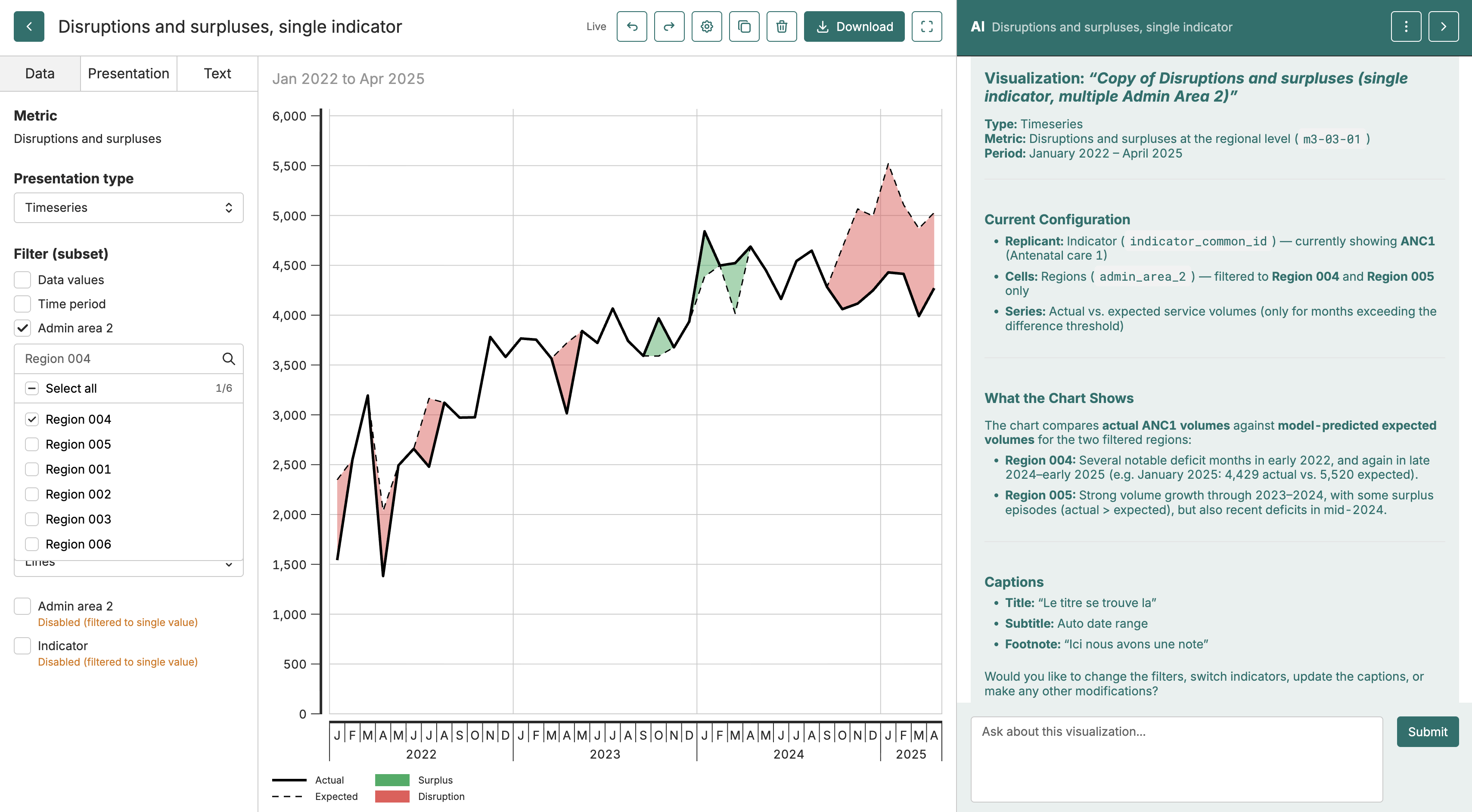
The AI assistant helps you explore and interpret your project’s data through conversation. It understands your modules, metrics, and visualizations - so you can ask questions like “what does the ANC1 coverage trend show?” or “which districts have the lowest data completeness?” and get answers grounded in your actual results.
Opening the assistant
Section titled “Opening the assistant”Click AI in any project view to open the assistant panel on the right side of the screen. The panel stays open as you navigate between visualizations, slide decks, and other sections - the AI tracks your context and adjusts its responses accordingly.
The assistant works differently depending on where you are. When viewing the metrics list, it can search and explain available indicators. When editing a slide deck, it can help draft content or suggest visualizations. When in the visualization editor, it understands which metric you’re working with.
Asking questions
Section titled “Asking questions”Type your question in the input field at the bottom of the panel. The assistant can explain what specific metrics measure, describe patterns in your data, answer questions about module outputs, and help draft narrative content for reports.
Good questions are specific. Instead of “tell me about the data,” try “what does the OPD utilization rate in Region X look like compared to last year?” The more context you provide, the more useful the response.
The prompt library
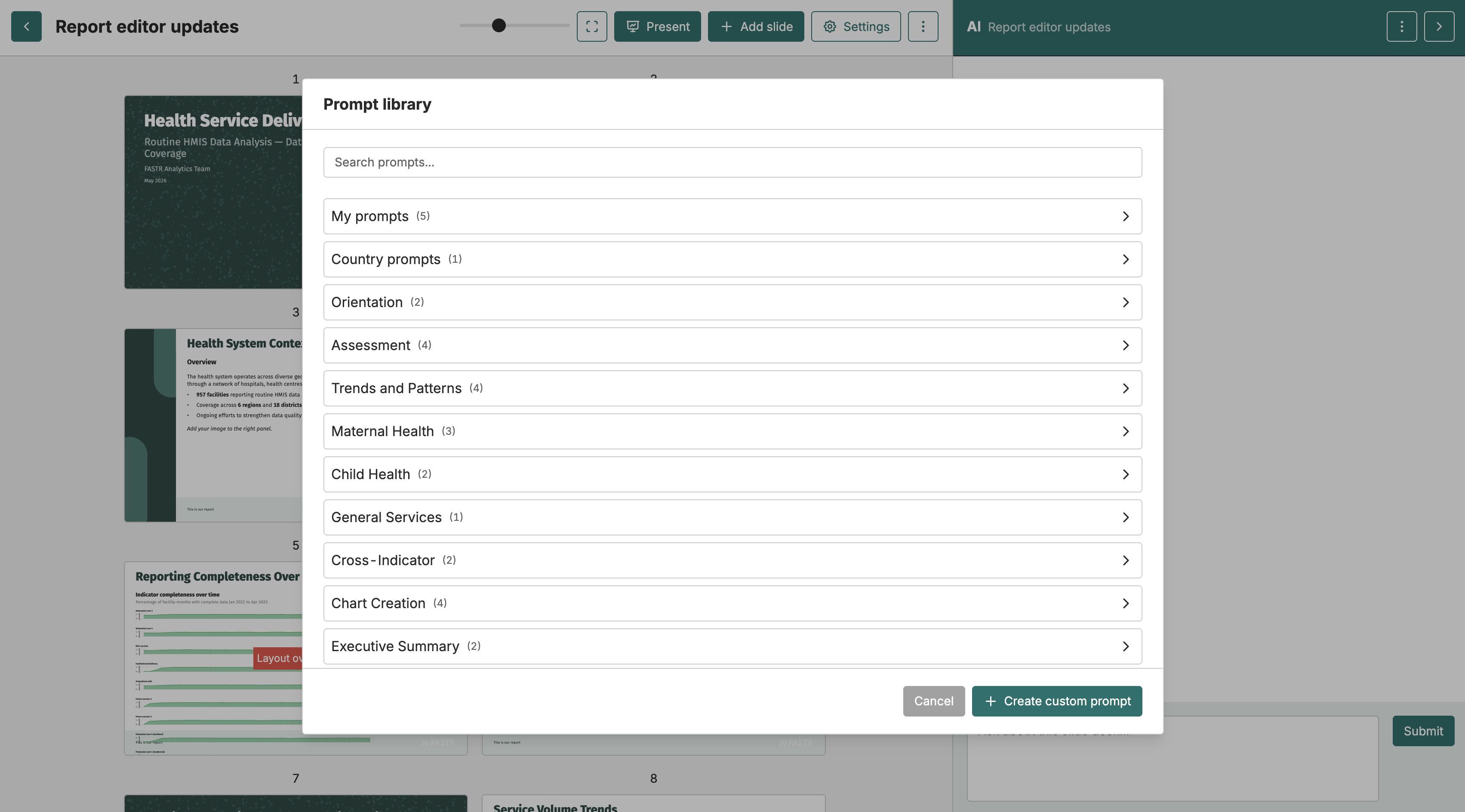
Section titled “The prompt library”The prompt library contains pre-written prompts for common analysis tasks. Click the menu icon in the AI panel header and select Prompt library to browse. Prompts are organized by category - interpretation, comparison, data quality checks, and more.
When you select a prompt, you can customize it before running. You can also save your own prompts to the library for reuse. Prompts can be saved as My prompts (private, visible only to you) or Country prompts (shared with all users in your instance). Only administrators can save country-scoped prompts.
Attaching documents
Section titled “Attaching documents”You can attach PDF documents to a conversation to give the assistant additional context - for example, a policy brief, a protocol, or a background report. Click the document icon in the chat input area to open the document selector.
The selector shows PDF files available in your project’s assets. Select one or more files to attach them, or upload a new PDF directly from your device. Documents you attach are pending until you send your next message. Pending attachments appear as chips in the input area and can be removed before sending by clicking the × on each chip.
Once a message is sent with attachments, those documents are shown in the conversation history without a remove option - they have already been sent to the assistant. Pending attachments that have not yet been sent can still be removed.
Each conversation tracks its own set of attachments. When you switch to a different conversation, the pending attachments update to reflect that conversation’s state.
Working with slides
Section titled “Working with slides”The assistant is particularly helpful when building slide decks. You can ask it to draft content for slides, suggest visualizations that support a narrative, or help structure your presentation. It knows which slides you’ve already added and can reference available metrics.
When you ask the assistant to create a slide, it drafts the content and shows a preview. Review the draft, request changes, and add it to your deck with one click.
When editing an existing slide, the assistant can also modify figures already on the slide - for example, changing which replicant a chart displays, adjusting filters, or updating captions - without rebuilding the figure from scratch. The assistant can also update figures on slides directly from the deck view, without opening the slide editor, and saves those changes immediately.
Working with reports
Section titled “Working with reports”In the report editor, the assistant can rewrite passages, insert new figures, and edit existing figures in place. When you ask it to change text, it proposes a diff in a modal that you accept or reject before anything changes. When you ask it to edit a figure - for example, to change its replicant or period filter - it applies the change directly to the live preview and saves immediately, without a diff step. To replace a figure with a completely different chart or metric, ask the assistant to replace the figure rather than edit it.
Navigating tabs
Section titled “Navigating tabs”The assistant can switch the main project tab on your behalf. It can navigate to Reports, Decks, Visualizations, Metrics, and Settings. The Results package tab is only accessible to instance administrators and users with data configuration permissions. Tab switching is not available while you are editing a visualization, slide deck, or slide.
Conversations and history
Section titled “Conversations and history”Each conversation is saved automatically. You can start new conversations and switch between past ones using the menu. This is useful when you’ve asked the assistant to explain something complex - return to that explanation later without re-asking.
Conversations are scoped to your project and include context about your data. The assistant remembers what you’ve discussed within a conversation, so you can build on previous questions.
Usage limits
Section titled “Usage limits”AI usage is subject to daily and weekly limits that apply across your instance. A usage indicator at the bottom of the panel shows how much of your daily limit you’ve consumed. If you reach the limit, wait until it resets - typically at midnight UTC. You can adjust the model and maximum token budget in the AI settings panel, accessible from the panel header.
Tips for better results
Section titled “Tips for better results”Ask specific questions rather than broad ones. Reference specific metrics, time periods, and geographic areas when relevant. When asking for interpretation, include context about your audience - “explain this for a ministry presentation” produces different output than “summarize for the technical team.”
If you get an unexpected result, try rephrasing. Using the exact metric names and terminology from your modules often helps the assistant find the right information.