
Slide decks
Slide decks let you assemble visualizations into polished presentations for stakeholders. Instead of exporting individual charts and manually arranging them in PowerPoint, you build the deck directly in FASTR - complete with consistent styling, cover pages, and section dividers. When you’re done, export the whole thing as a PDF or PowerPoint file.
Creating a slide deck
Section titled “Creating a slide deck”Open your project and click Slide decks in the left sidebar. Click Create slide deck to start. You’ll name it and optionally assign it to a folder for organization.
A new deck starts empty. The left panel shows your slides, and the main area shows a preview of the selected slide. You’ll build out the deck by adding different slide types.
To create slide decks, the project needs a results package attached first.
Slide types
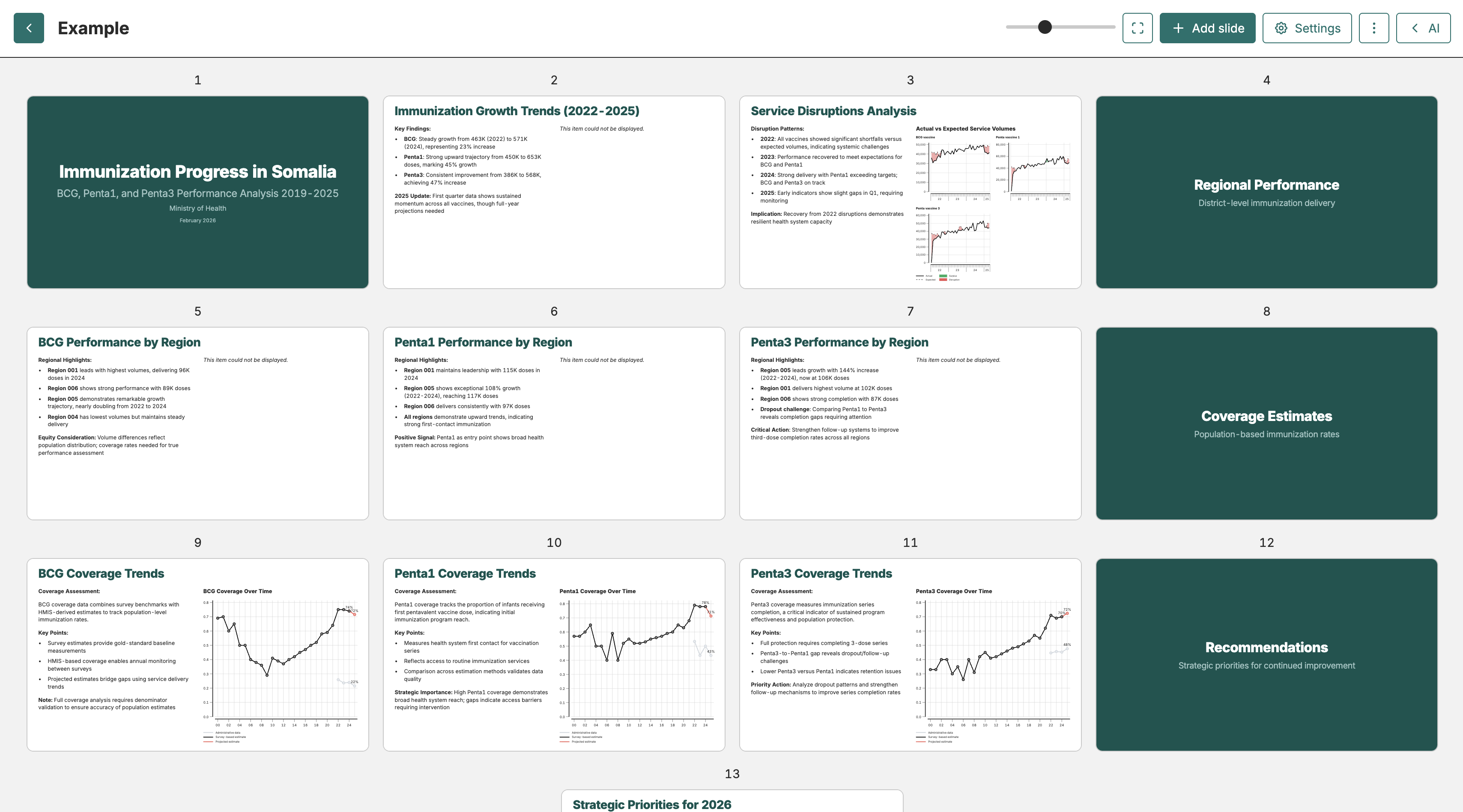
Section titled “Slide types”Decks contain three types of slides. Cover slides introduce the presentation with a title, subtitle, optional presenter name, and date. Section slides divide content into logical groups with a section title. Both use a bold, full-bleed design. Content slides are where your data lives - these contain visualizations, text, and images.
When you add a slide, you choose its type. You can convert between types later using the dropdown in the slide editor toolbar.
Building content slides
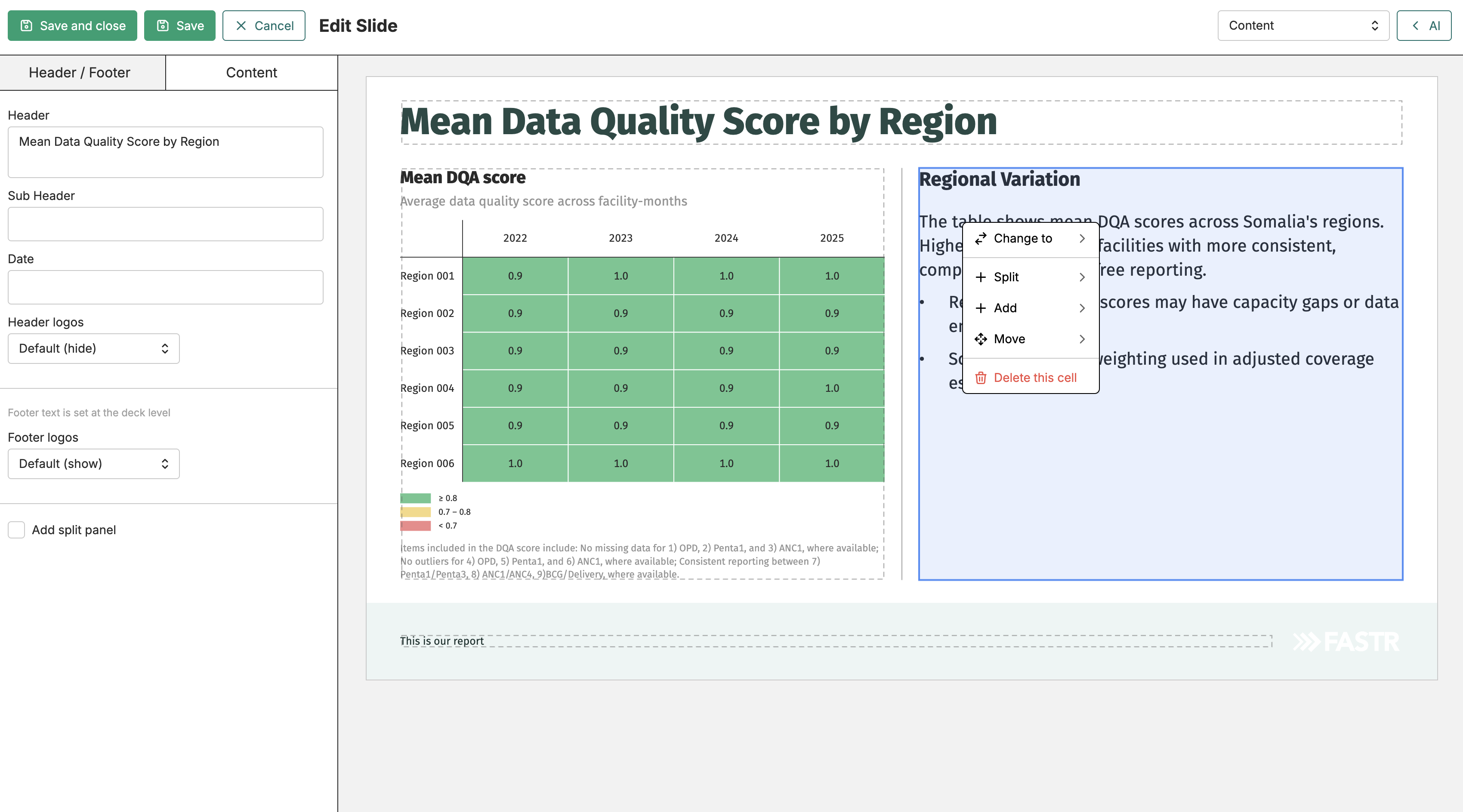
Section titled “Building content slides”Content slides use a flexible layout system with one or more content blocks. A block can hold text (formatted with markdown), a visualization from your project, or an uploaded image.
To add a visualization, click on an empty figure block and choose Select visualization. Select one from the list and it appears in the block, rendered with its current settings. You can sort visualizations in the selection panel by name or by recently updated using the sort control at the top of the panel. If you need to adjust the display - different time period or disaggregation - you can edit the embedded visualization directly from the slide.
Right-click on a block to access layout options like “Split left/right” or “Delete block.” You can drag dividers between blocks to adjust their relative sizes.
If a visualization or image cannot be rendered - for example because of a data error or a missing file - FASTR shows a short notice in the block rather than leaving it blank or stopping the export.
Presenting slides
Section titled “Presenting slides”Click Present in the slide list toolbar to open the fullscreen presenter. The presenter shows one slide at a time and preloads neighbouring slides so navigation is instant. Use the arrow keys or the on-screen controls to move between slides. Press Escape or click the close button to exit. Click the maximize icon to enter true fullscreen mode; pressing Escape while in fullscreen exits the presentation entirely.
When collaborators add, remove, or reorder slides while the presenter is open, the presenter picks up those changes automatically. The slide list and page counter update to reflect the current deck, and cached renders are refreshed whenever a peer edits a slide you have already loaded.
Deck styling
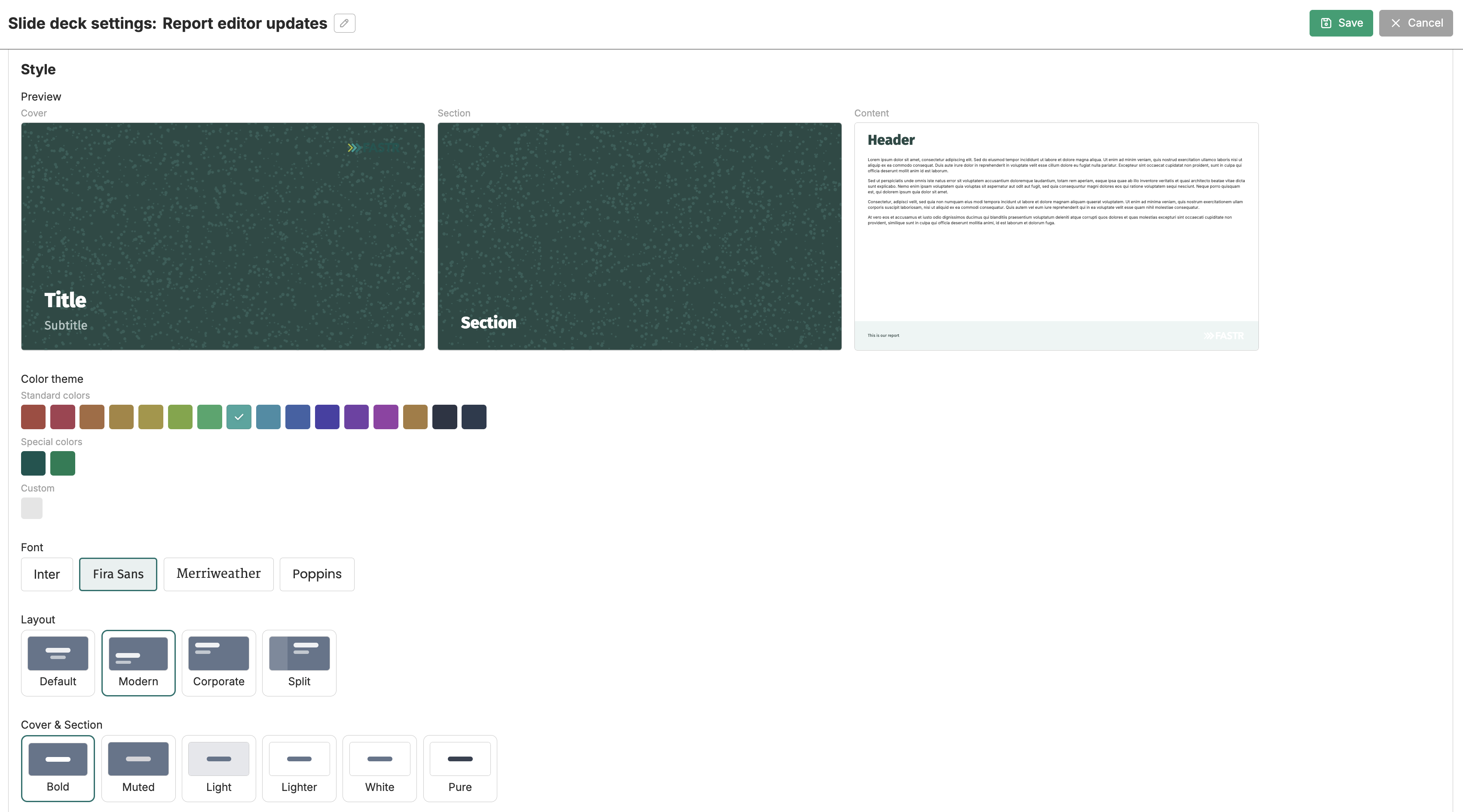
Section titled “Deck styling”Click Settings in the deck toolbar to configure styling that applies across all slides. Options include color theme, font family, layout template, and cover treatment. You can also configure which logos appear on cover slides, headers, and footers.
When choosing a color theme, click More themes… next to the color theme label to open the theme picker modal. The modal displays all available standard and special color themes as side-by-side previews rendered on a sample content slide, so you can compare them before committing. Select a theme card to apply it and close the modal. A Custom card lets you enter a hex color code to derive a full theme from your organization’s brand color.
Collaborating on a slide deck
Section titled “Collaborating on a slide deck”When multiple people have the same slide deck open, each person’s cursor appears as a colored arrow with their name on the slide canvas. You can also see who is currently editing a specific slide - a small presence avatar appears at the bottom of slide thumbnails in the list. Avatar icons in the deck toolbar show who else has the deck open at the same time. This makes it easy to coordinate without overwriting someone else’s work.
When you open the slide editor, text fields for the slide title, header, and other root-level text are collaboratively bound: remote collaborators’ carets appear inside the same text field you are typing in, so you can see exactly where they are. Body text blocks on content slides work the same way.
The AI assistant will not edit a slide that another collaborator currently has open in the editor, to avoid overwriting live in-progress changes. If you ask the AI to modify a slide being edited by a colleague, it will let you know and wait for you to try again once the slide is free.
Undo and redo in the slide editor
Section titled “Undo and redo in the slide editor”When editing a slide, the header includes Undo and Redo buttons. These reverse your own slide changes - adding blocks, changing layouts, moving figures, and text typed in any text field on the slide - without affecting edits made by collaborators. The buttons appear only when you have permission to configure slide decks and the project is not locked. You can also use Ctrl+Z and Ctrl+Shift+Z (or Cmd+Z and Cmd+Shift+Z on Mac) as keyboard shortcuts; these work both while focus is on the slide canvas and while you are typing inside a text field on the slide.
Version history
Section titled “Version history”Click Version history in the deck’s overflow menu to open the version history panel. Versions are saved automatically at the end of each editing session and grouped by day on the left. Select a version to see a grid of all slide thumbnails as they looked at that point. New, edited, and removed slides are badged with the name of the collaborator who made the change. Click any thumbnail to open a full-size view; edited slides also show a breakdown of which text fields and blocks changed within that session.
The change breakdown now detects layout changes more precisely. Wrapping blocks into columns, unwrapping a container, or resizing a layout container are all reported as arrangement changes in the session diff, even when the order of the individual content blocks did not change.
Use Restore to reset the deck to that version (your current content is saved as a new version first), or Restore as copy to create a new deck from the snapshot.
If the deck has unsaved live edits that cannot be saved at the moment you request a restore, FASTR will let you know and ask you to retry once saving has recovered.
Exporting and sharing
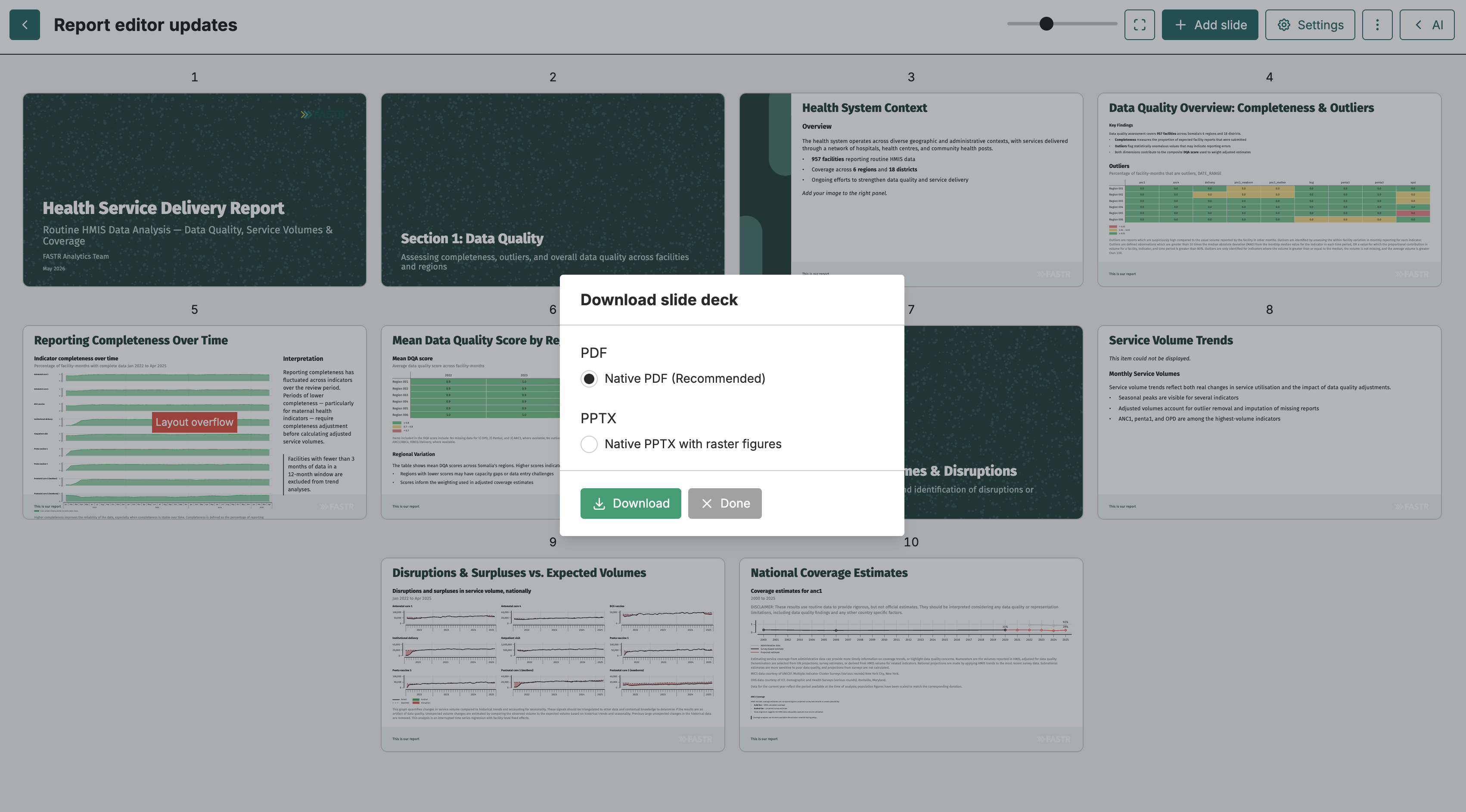
Section titled “Exporting and sharing”Click Download to export your deck. Native PDF produces a high-quality vector file where text stays sharp at any zoom level. PPTX with raster figures creates a PowerPoint file with visualizations embedded as images - useful if recipients need to make edits.
You can also share decks directly by email. Click Share, select recipients from your instance’s user list or add email addresses, and optionally include a message. FASTR validates email addresses before generating the PDF, so any invalid addresses are flagged immediately rather than after a lengthy export. FASTR generates a PDF and sends it as an attachment.
Organization
Section titled “Organization”Use folders to keep decks organized as your project grows. In the list view, click New folder to create one, then right-click on decks to move them. You can duplicate decks when creating variations for different audiences. The search box filters decks by name. Use the sort control at the top of the list to order decks by name or by recently updated.